Showing posts with label Android Issue. Show all posts

Tuesday, June 5, 2018

How to change action bar hamburger icon color.

You have to use a custom theme for changing the hamburger icon color. Here is the sample code and doc link

- https://gist.github.com/MotiurRahman/419344fbf8e9d4fb2aa262a4b9054743

- https://docs.appcelerator.com/platform/latest/#!/guide/Android_Action_Bar

Hope this helps.

Friday, March 9, 2018

How to choose a pdf/doc/image file from the device and upload to the server.

You can try with the following sample code


var window = Ti.UI.createWindow({
backgroundColor : 'red',
layout : "vertical"
});
// Create a Button.
var request = Ti.UI.createButton({
title : 'GO',
height : 100,
width : 100,
backgroundImage : "motiur.jpg",
top : 50
});
request.addEventListener('click', function(e) {
var intent = Ti.Android.createIntent({
action : Ti.Android.ACTION_GET_CONTENT,
type : "application/pdf"

});
intent.addCategory(Ti.Android.CATEGORY_OPENABLE);
var x = Ti.Android.createIntentChooser(intent, "Select");
window.getActivity().startActivityForResult(x, function(e) {

//alert("fileData:" + JSON.parse(e.intent.data));
var doc = Ti.Filesystem.getFile(e.intent.data);
Ti.API.info(JSON.stringify(doc));

var file = Ti.Filesystem.getFile(doc.nativePath);
Ti.API.info("File:" + doc.nativePath);
alert("File path:" + doc.nativePath);

// write here http code for file uploading to the server.

});
});
window.add(request);
window.open();

Thanks!

Thursday, February 22, 2018

Android: does not show the Map || How to create API key for map

Usually, Map does not show if your API key is not correct or Map module version is not compatible. So the following steps can help to generate the API key

Go to the following link and "Detailed guide for users of the standard Google Maps Android API" section
You have to create your API key with the exact package name (<id> tag value) and SHA-1 certificate fingerprint. 
You can generate your SHA-1 certificate fingerprint using this command for the development App
  • keytool -list -v -keystore ~/Library/Application\ Support/Titanium/mobilesdk/osx/7.0.2.GA/android/dev_keystore
No need password, just press enter.

For production App:

You have to use production keystore file for generating SHA-1 certificate fingerprint

- keytool -list -v -keystore <here drag and drop your keystore file then press enter>


Now, use that API key in your tiapp.xml file. You can follow this doc link to do that
Hope this helps


Monday, February 19, 2018

How to play an audio and video file using hyperloop.

Here is an example code for android

var Activity = require('android.app.Activity');
var AudioManager = require('android.media.AudioManager');
var MediaPlayer = require('android.media.MediaPlayer');
var Uri = require('android.net.Uri');
var activity = new Activity(Ti.Android.currentActivity);
var context = activity.getApplicationContext();
var mMediaPlayer;

var contentUri = Uri.parse('android.resource://' + activity.getPackageName() + '/raw/abc');
//var myUri = Uri.parse("app/platform/android/res/raw/five.mp3");
//Ti.API.info("myUri=" + myUri);

mMediaPlayer = new MediaPlayer();
mMediaPlayer.setOnCompletionListener(new MediaPlayer.OnCompletionListener({
onCompletion : function(mediaPlayer) {
Ti.API.info('MediaPlayer playback completed');
}
}));
mMediaPlayer.setAudioStreamType(AudioManager.STREAM_MUSIC);
mMediaPlayer.setDataSource(context, contentUri);
mMediaPlayer.prepare();

function startMedia() {
mMediaPlayer.start();
}

function stopMedia() {
mMediaPlayer.pause();

// NOTE: You can also stop it, but then you have to prepare() it again as well
// mMediaPlayer.stop();
// mMediaPlayer.prepare();
}

$.win1.open();


Hope this helps.

Monday, October 16, 2017

How to open pdf file on Android.

Following example would be helpful for opening pdf file

////////------////////////

var file = Ti.Filesystem.getFile(Ti.Filesystem.resourcesDirectory, "test.pdf"); 
var outFile = Ti.Filesystem.getFile(Ti.Filesystem.externalStorageDirectory, 'tempFile.pdf'); 
var outPath = outFile.nativePath; 
file.copy(outPath); 

try{ 
Ti.Android.currentActivity.startActivity(Ti.Android.createIntent({ 
action: Ti.Android.ACTION_VIEW, 
type: 'application/pdf', 
data: outPath 
})); 
} catch(e) { 
alert('You must install a PDF reader to view this file'); 


OR


try{ 
var intent = Ti.Android.createIntent({ 
action : Ti.Android.ACTION_VIEW, 
type : "application/pdf", 
data: outPath 
}); 


var open = Ti.Android.createIntentChooser(intent, L('open_intent')); 
Ti.Android.currentActivity.startActivity(open); 
} catch(e) { 
alert('You must install a PDF reader to view this file'); 


file = null; 


Thanks

Friday, December 30, 2016

How to displays a back arrow on the home area of the action bar.

Here is the sample code. Please take a look

var win = Ti.UI.createWindow({
title : "Old Title",
navBarHidden : false
});
var actionBar;
win.addEventListener("open", function() {
if (Ti.Platform.osname === "android") {
if (!win.activity) {
Ti.API.error("Can't access action bar on a lightweight window.");
} else {
actionBar = win.activity.actionBar;
if (actionBar) {
actionBar.backgroundImage = "/bg.png";
actionBar.displayHomeAsUp = true;
actionBar.onHomeIconItemSelected = function() {
alert("Home icon clicked!");
};
}
}
}
});
win.open()


Check out this link as well 


Hope this helps.

Wednesday, December 21, 2016

Android or iOS permission issue for the Appcelerator App.

Please have a look on this code sample, if you use any of that API then make sure the permission.
Thanks.

How to change the android buildtools version in Appcelerator


You can change the build tools version using this command

appc ti config android.buildTools.selectedVersion ##.##.##

Example
appc ti config android.buildTools.selectedVersion 25.0.3

Just go to your Android SDK location. Here you will see the version number.

For mac location
/users/fokkezb/Library/Android/sdk/build-tools/ version_number

Hope this helps.

Saturday, December 17, 2016

Installing x86 Emulator Packages.


Maximum versions of the Android API are available with Intel x86 emulators. Look for the "Intel x86 Atom System Image" in the Android SDK Manager.
Go to the android SDK >>tools >> click on android and select all tools, Android-6, and Extra folder(Intel x86 emulator accelerator (HAXM)) then install those packages.
The x86 emulator may run faster than the standard ARM emulator, but may show minor differences with the ARM emulator. Extra software is required to take advantage of the x86 emulator – see Configuring Virtual Machine Acceleration in the Android Tools documentation. And the Extra software is Intel x86 emulator accelerator (HAXM).

Friday, December 16, 2016

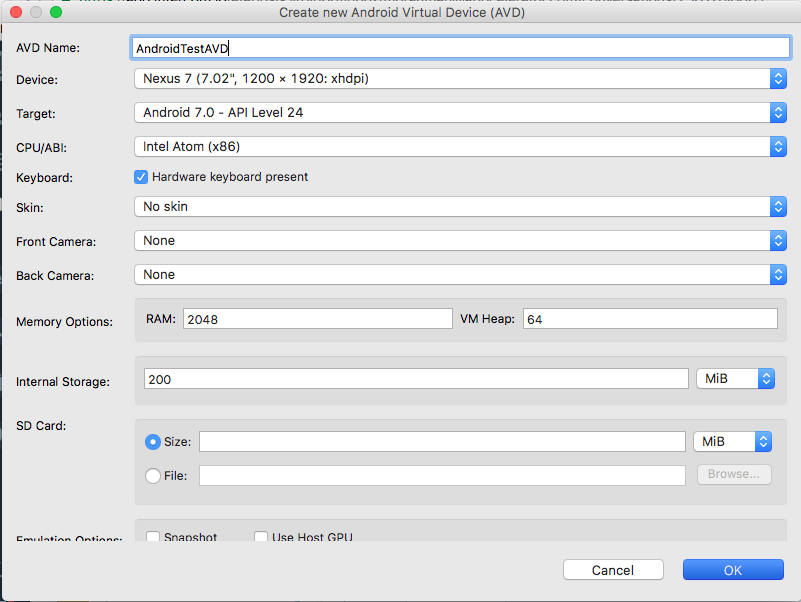
Create new Android emulator.

Android default emulator is really very slow so create new x86 CPU based emulator

Go to
Preference >> Studio >> Android >> Click on Manage AVDs


Android Virtual Device(AVD) Manager will be opened

Here click on >> Create


A new window will be opened then fill the following fields

AVD Name: Give Any Name
Device: select any device

Target: Select the target android API

CPU/API(very important ): select  (Intel Atom x86)

Note: If you do not find (Intel Atom x86) CPU then you have to download "Intel x86 Atom System Image" for your Android SDK. Also, you have to download the “Intel x86 emulator accelerator (HAXM)” from the Extra folder. Then you have to install it. To do so, go to your Android SDK’s installation folder, then go to extras/intel/Hardware_Accelerated_Execution_Manager/ and execute IntelHAXM.dmg. 
See this link how to install the packages
- http://titaniumsolution.blogspot.com/2016/12/installing-x86-emulator-packages.html

Keyboard: if you need Hardware keyboard then check otherwise uncheck.

Skin: No Skin

Then Click on OK button.


Now you will see the emulator on the Android Virtual Device(AVD) Manager

Click on start to start it.


If you face any issue then you have to fix it otherwise it will not work.

Now run your App. Always try to start your emulator from Android Virtual Device(AVD) Manager then run App.

Wednesday, April 23, 2014

Android:Best practices to use default them.

Android Default Them:

Android allows you to set the appearance of your application using themes.A theme specifies default colors, fonts, and images, for an Android activity or an entire application. Your application can use the device's built-in themes, or include custom themes. By default, Titanium applications use a custom theme called Titanium for their main activity.

If you try to use an unsupported theme, you will either receive a build error that
the resource cannot be found or a runtime error that the theme is not supported.

At First, create a theme XML file in ./platform/android/res/values. Do NOT name the file theme.xml. . 
If you create a file called theme.xml, it will overwrite the default Titanium one and break the build process.
//platform/android/res/values/builtin_themes.xml
<!-- Works for Titanium SDK 3.2.x and earlier when built against Android 4.0x/API Level 14 -->
<?xml version="1.0" encoding="utf-8"?>
<resources>
      <!-- Available for Android 4.0.x/API Level 14 and later -->
      <style name="LightDarkBar" parent="@android:style/Theme.Holo.Light.DarkActionBar"/>
      <!-- Available for Android 3.0.x/API Level 11 and later -->
      <style name="Light" parent="@android:style/Theme.Holo.Light"/>
      <style name="Dark" parent="@android:style/Theme.Holo"/>
      <!-- Available for all Android versions -->
      <style name="OldLight" parent="@android:style/Theme.Light"/>
      <style name="OldDark" parent="@android:style/Theme.Black"/>
</resources>


Finally, to use a theme in your application, modify the Android section of your tiapp.xml file to reference the style name you want to use

<android xmlns:android="http://schemas.android.com/apk/res/android">
       <manifest>
             <application android:theme="@style/LightDarkBar"/>
             <uses-sdk android:minSdkVersion="14" android:targetSdkVersion="19"/>
        </manifest>
</android>

For more details:Android Theme

Monday, November 4, 2013

How to add Custom font in Titanium also Bangla Support in android

This is the Easy way To add custom font  or support Bangla in your android apps in titanium.

At first create a folder named fonts in resource directory then past here your custom font. you can get it

And call this font in a font property where you want like this code.

var customFont = 'Spicy Rice'; // use the friendly-name on iOS
if(Ti.Platform.osname=='android') {
   // on Android, use the "base name" of the file (name without extension)
   customFont = 'SpicyRice-Regular';
} 

var label1 = Titanium.UI.createLabel({
   color:'#000',
   text:'I am Window 1',
   font:{
      fontSize:40,
      fontFamily: customFont
   },
   textAlign:'center',
   width:'auto'
});


You can follow this link Custom_Fonts to know more.
Thanks